First-run setup
When you start the Nimbus desktop app for the first time, it launches the headless Gateway, opens the onboarding wizard, registers a system tray icon, and optionally binds a global hotkey for Quick Query. This page walks through each step.
What launches
Section titled “What launches”Starting the Tauri desktop app triggers three things in parallel:
- Gateway process. A headless Bun process starts in the background. It creates the local SQLite index, loads your configuration, and opens the JSON-RPC IPC socket. The Gateway continues running even when the UI window is closed.
- Onboarding wizard. On first launch (no connectors configured), the UI opens to the onboarding wizard rather than the dashboard.
- System tray icon. A Nimbus icon appears in the system tray (notification area). It shows aggregate connector health and gives you one-click access to the UI or Quick Query.
Subsequent launches skip the wizard and go directly to the dashboard.
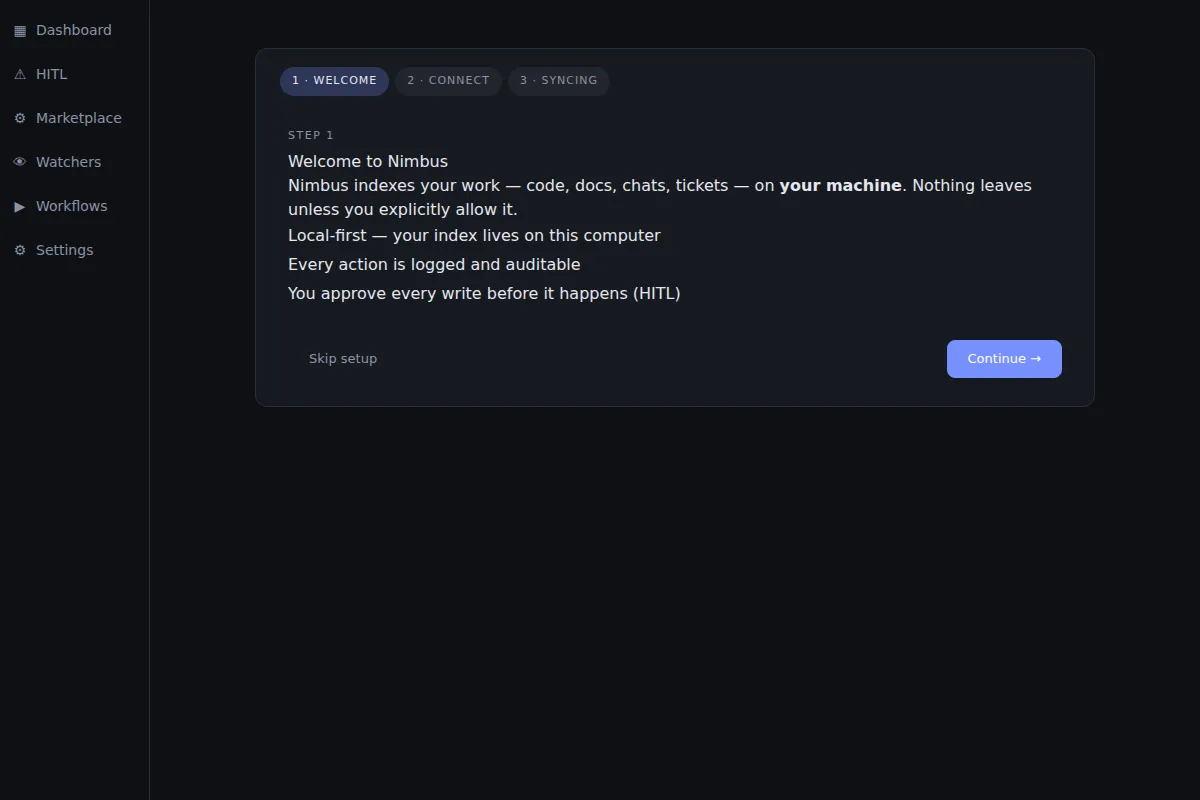
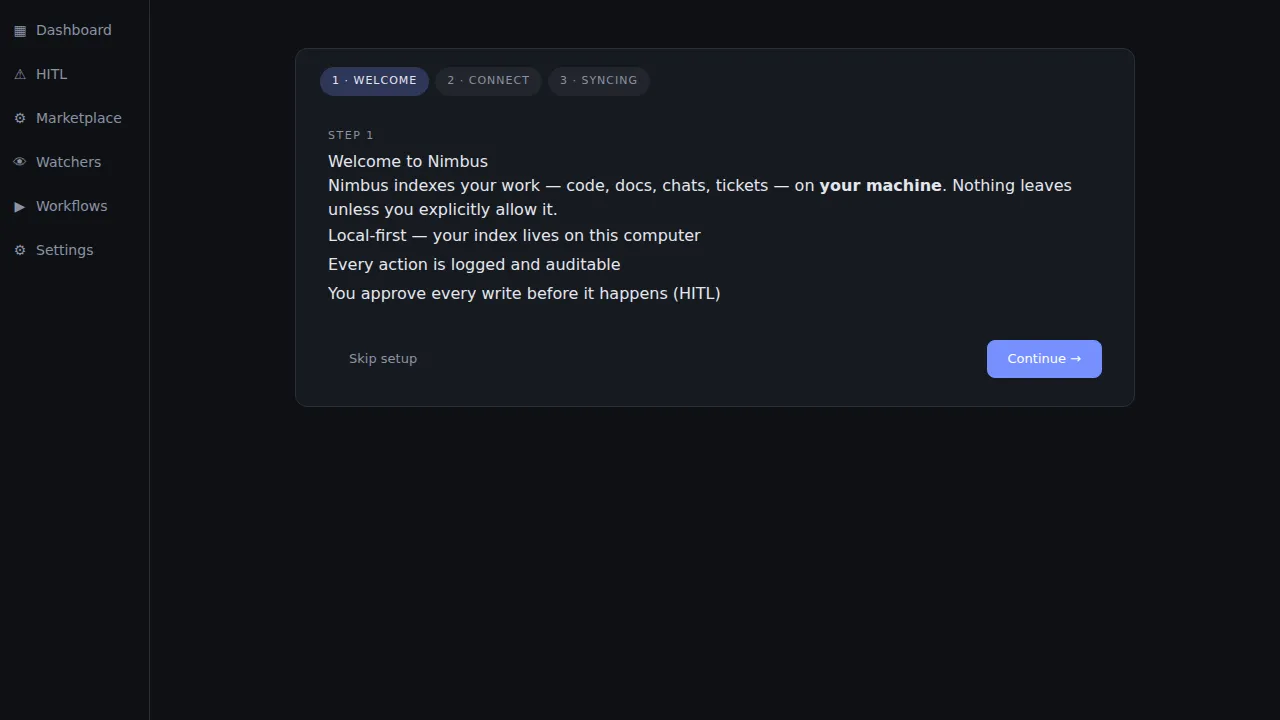
Onboarding wizard — Step 1: Welcome
Section titled “Onboarding wizard — Step 1: Welcome”The welcome screen introduces Nimbus and its three core principles: local-first indexing, structural HITL consent, and vault-only credentials.
Click Continue to proceed to service selection, or Skip to go straight to the dashboard with no connectors configured (you can add them later via Settings → Connectors).
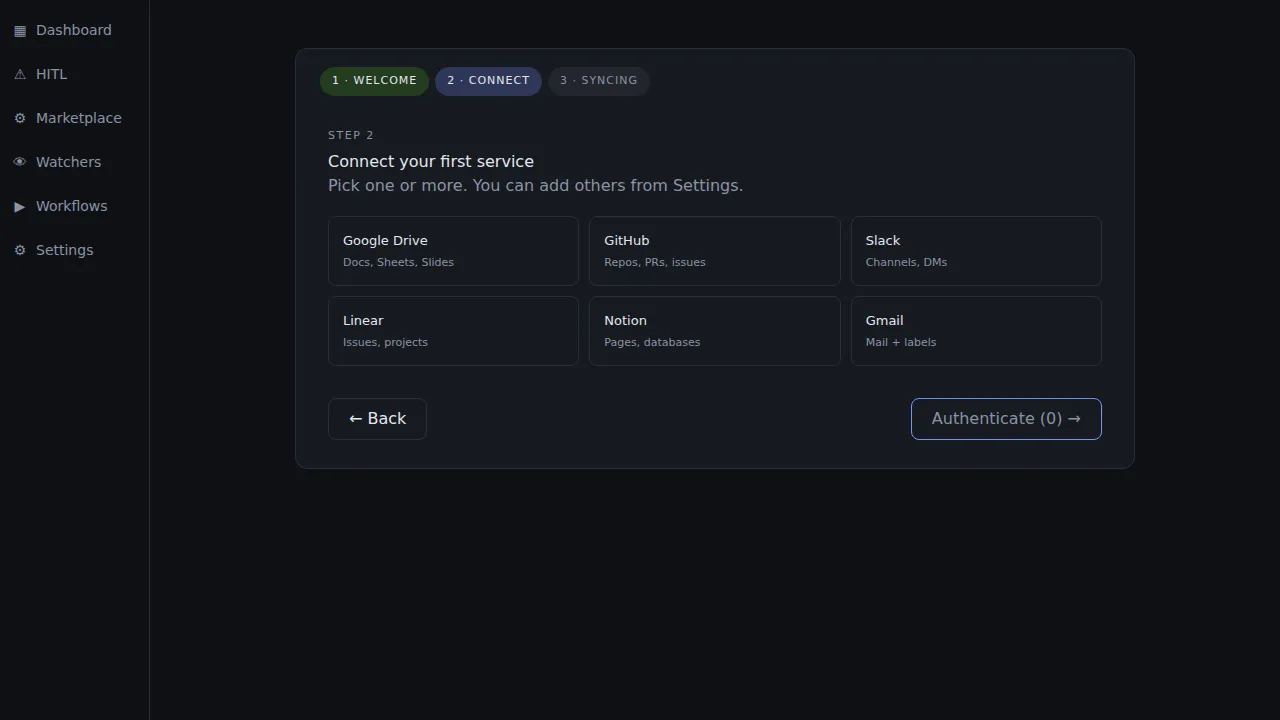
Onboarding wizard — Step 2: Connect a service
Section titled “Onboarding wizard — Step 2: Connect a service”The service selection screen shows connector cards for the six most commonly used integrations. Click a card to select it, then click Authenticate to open the OAuth flow in your system browser.
| Card | What it indexes |
|---|---|
| Google Drive | Files, folders, recent edits, shared-with-me |
| Gmail | Threads, labels, attachments metadata |
| GitHub | Pull requests, issues, commits, repositories |
| Slack | Channels, threads, DMs (with your consent per workspace) |
| Linear | Issues, cycles, projects, comments |
| Notion | Pages, databases, comments |
You can select multiple services before clicking Authenticate — the wizard queues OAuth flows in sequence. You do not need to connect any service at this step; the assistant works immediately against any connectors already configured.
For the full OAuth walkthrough (what scopes are requested, what is indexed, how to revoke access), see Connect your first service.
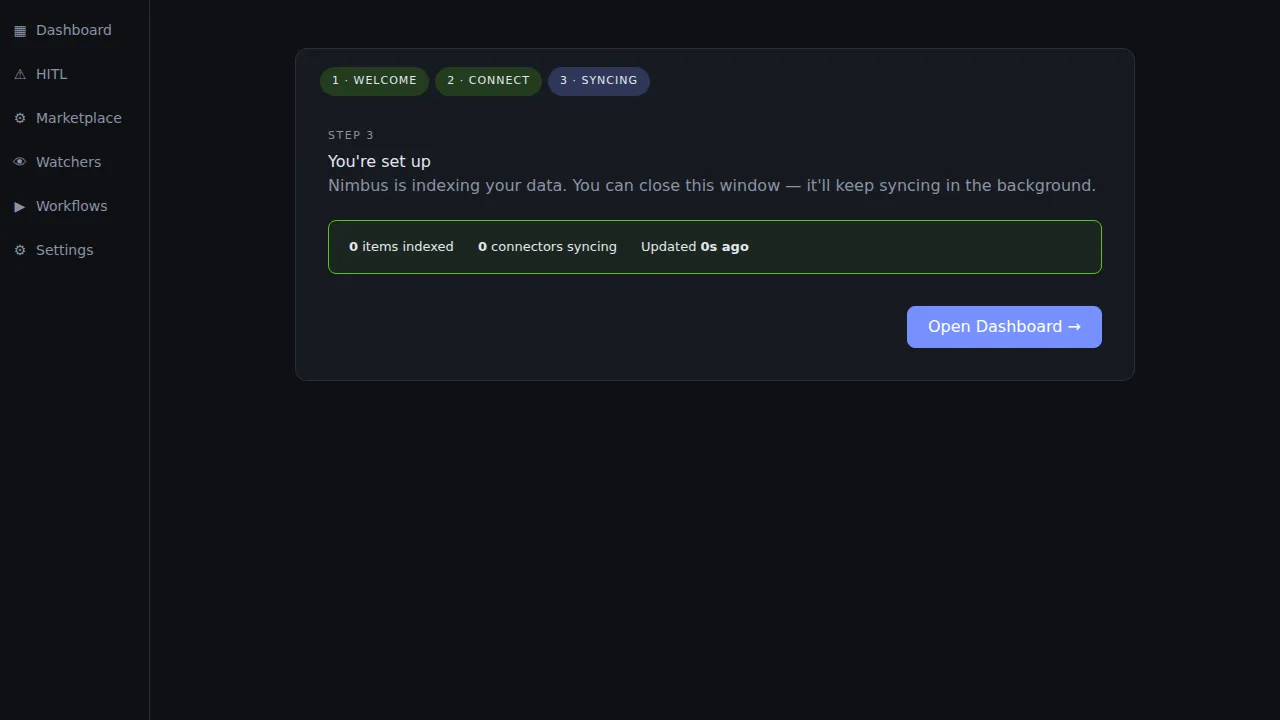
Onboarding wizard — Step 3: Syncing
Section titled “Onboarding wizard — Step 3: Syncing”After a successful OAuth handshake, the wizard moves to the syncing screen. A live counter shows how many items have been indexed so far. Initial sync time depends on the size of your account — a GitHub account with several hundred PRs typically finishes in under 60 seconds.
You do not need to wait for sync to complete. Click Open Dashboard at any time to start using Nimbus. The index continues building in the background and queries return progressively better results as more items are indexed.
Skipping onboarding
Section titled “Skipping onboarding”Desktop app only (the desktop app has not been released yet); from the CLI, add a connector with
nimbus connector auth <service>.
If you clicked Skip on the welcome page, you land on the dashboard with no connectors configured. The connector grid shows empty tiles. To add connectors later:
- Click Settings in the sidebar (or press
S). - Navigate to Connectors.
- Click the connector you want to add and follow the OAuth flow.
System tray
Section titled “System tray”Desktop app only — the desktop app has not been released yet. From a terminal, nimbus status and
nimbus connector list report the same health.
The Nimbus system tray icon reflects aggregate connector health:
| Colour | Meaning |
|---|---|
| Green | All configured connectors healthy |
| Amber | One or more connectors degraded (stale data, rate-limited) |
| Red | One or more connectors failed or unauthorised |
| Grey | Gateway not running |
Right-click the tray icon for the context menu:
- Open Nimbus — bring the main window to the foreground.
- Quick Query — open the frameless Quick Query popup (same as the hotkey).
- Connectors — submenu listing each configured connector; clicking one deep-links to its Settings panel.
- Quit — stop the Gateway process and exit.

Quick Query (global hotkey)
Section titled “Quick Query (global hotkey)”Desktop app only — the desktop app has not been released yet. From a terminal, use nimbus ask "<question>".
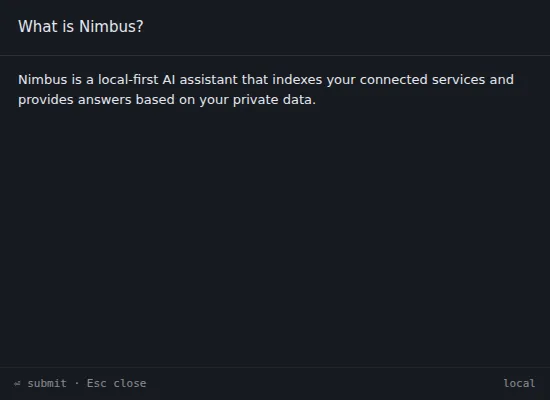
Quick Query is a frameless popup window that lets you ask Nimbus anything without switching away from your current application.
Default hotkey:
| Platform | Hotkey |
|---|---|
| macOS | Cmd + Shift + N |
| Windows / Linux | Ctrl + Shift + N |
Press the hotkey from anywhere:
- The Quick Query window appears centred on your primary display.
- Type your question and press Enter.
- The response streams into the window.
- The window auto-closes approximately 2 seconds after the stream finishes.
- Press Esc at any time to close immediately.
Hotkey conflicts
Section titled “Hotkey conflicts”If another application has already bound Ctrl + Shift + N (or
Cmd + Shift + N), the Tauri toolbar shows a banner:
“Could not register global shortcut Ctrl+Shift+N — another app may be using it.”
To resolve this:
- Change the conflicting application’s hotkey binding, or
- In Nimbus, navigate to Settings → Advanced to remap the Quick Query hotkey (post-v0.1.0 feature — not available in v0.1.0; for now, adjust the conflicting application).
The rest of Nimbus works normally even when the global hotkey cannot be registered — use the tray icon’s Quick Query menu item as an alternative.